

Skip to content

How to add a signature using Real Signature

How to add a signature using Real Signature — a step-by-step guide.

How do I add a signature to a task or request using Real Signature?

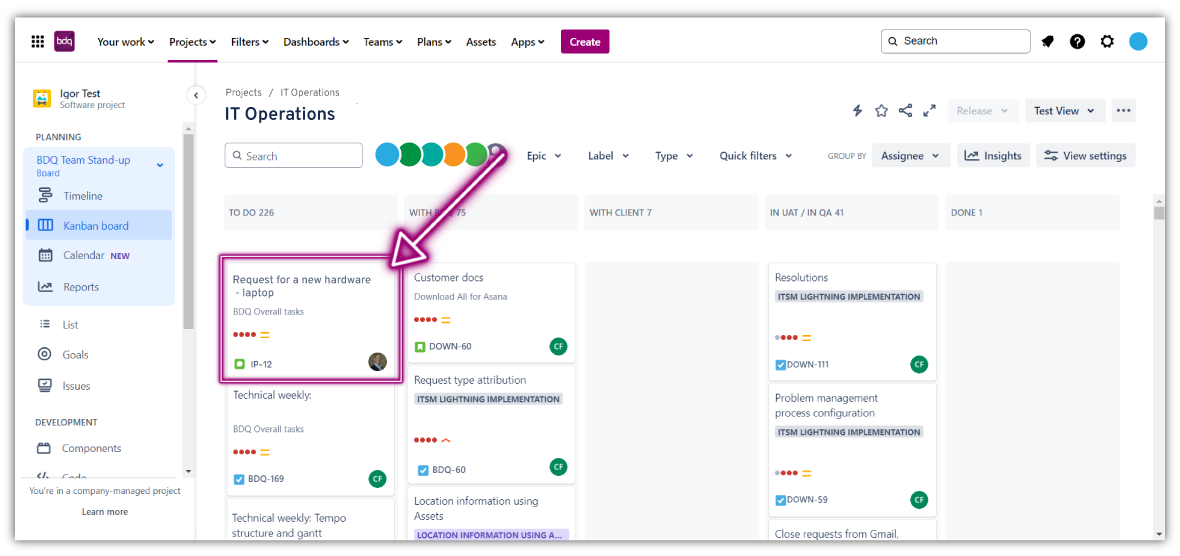
  • 1. Open the issue that you want to add a signature to
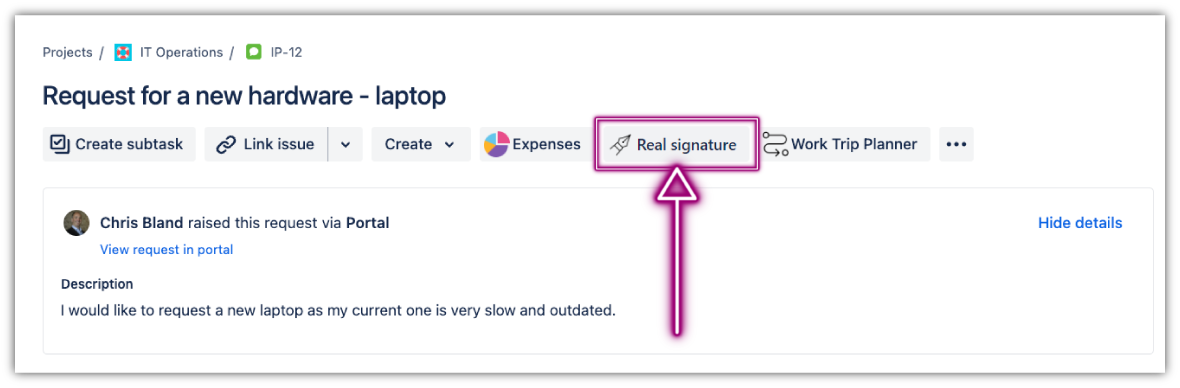
  • 2. Click on the Real Signature icon in the Issue panel
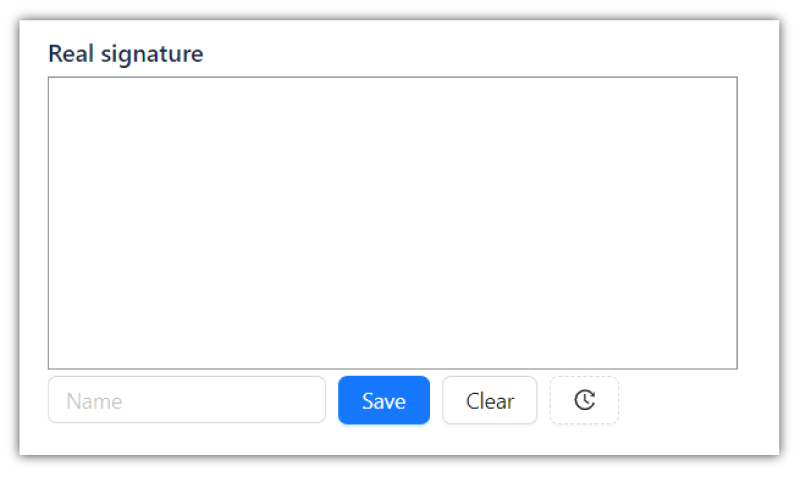
  • 3. A signing panel will appear below the issue/task description
  • 4. Draw your signature inside the box using a mouse on computers or finger/stylus on mobile devices
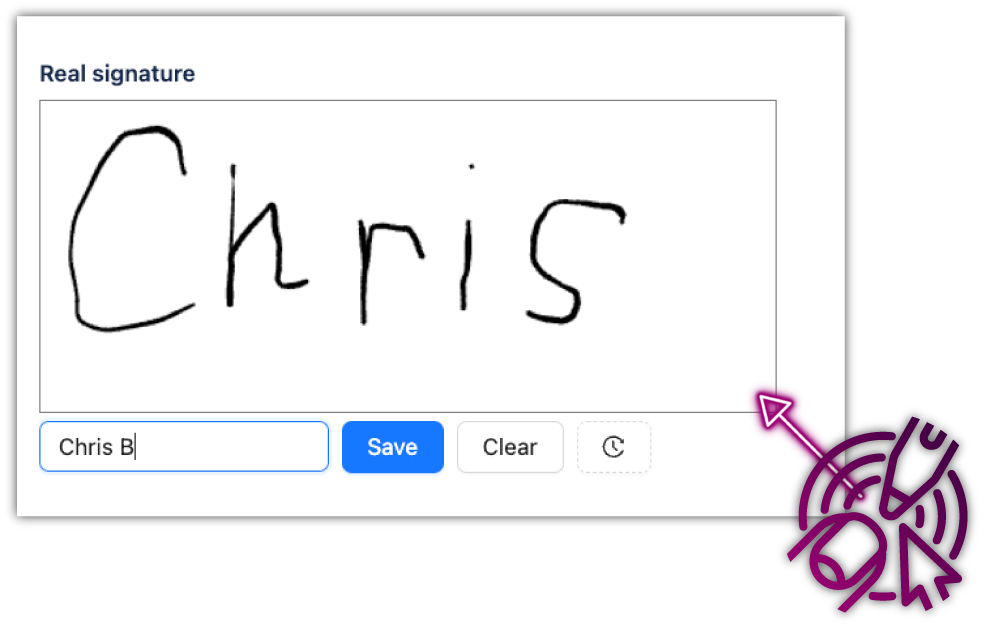
  • 5. Add a name to go with the signature and click Save
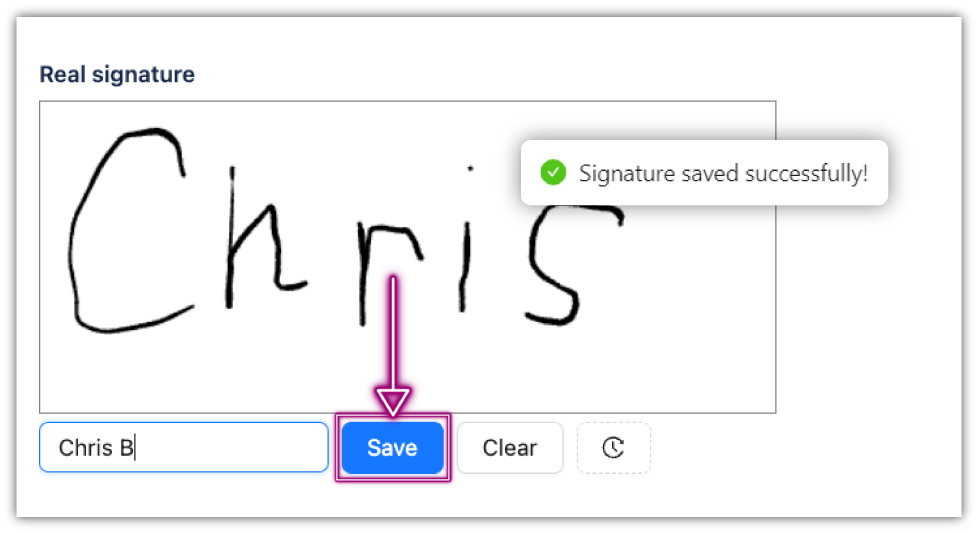
  • 6. The app will save the current user's name, signee's name (optional), timestamp and the signature

Up Next:

How to see the history of a signature →

What is Real Signature for Jira?

Real Signature for Jira allows you to add authentic in-person signatures to Jira tasks with just a click and a scribble! With a cursor through your desktop or a finger/stylus on a tablet or mobile device, you can get tasks signed off with real signatures.
Built specifically for Atlassian's Jira by BDQ's in-house technical experts, the app is designed for field service management desks and engineers who need to collect real customer signatures. The app is available through the Atlassian Marketplace or find it in your Jira instance.
If you have any questions or comments about the app, please get in touch using the form on the Product page.

Questions?

Need clarification on any of this?

We use cookies to keep the site working and to power features like our live chat. Analytics are cookieless. See our privacy policy.