

Tab Helper for Jira & Confluence
Introducing the ONLY Jira and Confluence tab manager for Google Chrome!
At BDQ, we don't just resell, implement, integrate and offer support for Atlassian's Jira and Confluence, we also use both products in our professional day-to-day work lives. This means we know the frustration of having multiple Jira and/or Confluence tabs open at the same time, and not being able to find the one that you want. This causes delays in getting work completed, possibly causing further problems such as missing SLAs and inconveniencing customers.
To combat this issue, our in-house technical experts developed a way to quickly and efficiently manage your Jira and Confluence tabs in Chrome. With Tab Helper, you can effortlessly locate, jump to or close tabs from the app interface. You can also designate the tabs that have production instances open so that you don't accidentally close the tab, possibly causing issues with your customers systems.
Key benefits of Tab Helper for Jira & Confluence
- Manage Chrome Tabs
Use the app interface to find, jump to, close or protect Jira & Confluence tabs in Chrome so you can find work quickly. - Easy visualisation
The app icon changes colour depending on the live tab: blue for Jira/Confluence tabs, red for tabs you designated as "Production" tabs and grey for everything else. - Open Source
BDQ have provided the code for the add-in for free on GitHub. Take a look and let us know what you think.

How to pin Tab Helper to the Extensions bar in Chrome
If you need help pinning Tab Helper to the Extension bar in Chrome, we've got you covered. Now that you have added Tab Helper for Jira & Confluence to Chrome, you can pin the app to the Extensions bar in Chrome so that you can find it easily.
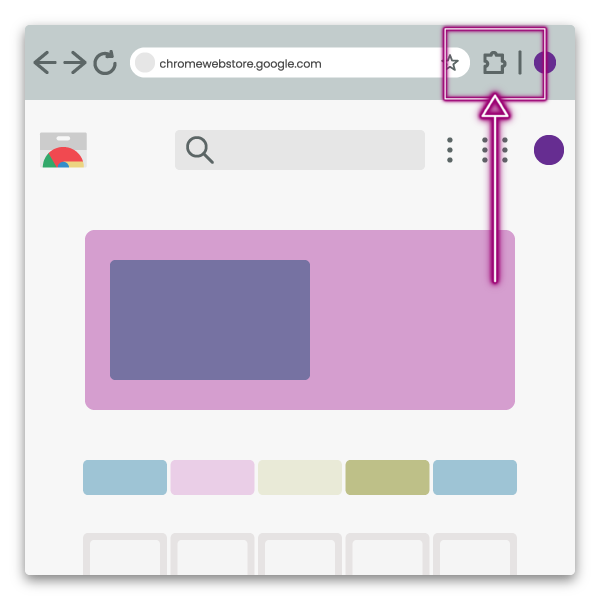
- 1. Click the "Extensions" icon on the right side of the address bar in your Chrome browser. The icon looks like a Jigsaw puzzle piece.
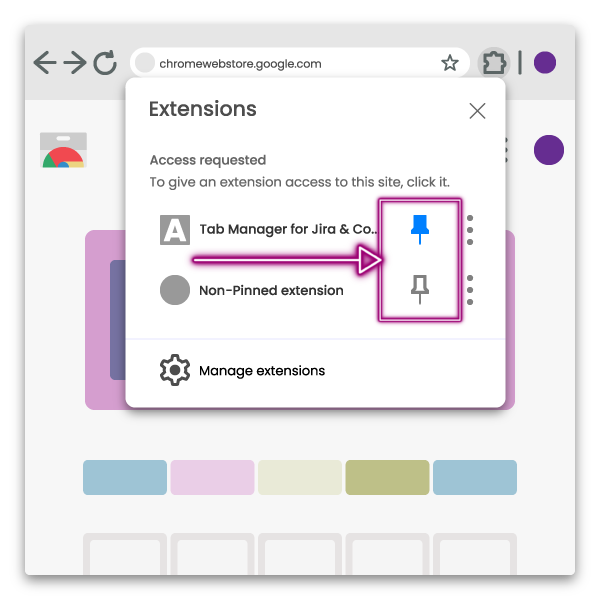
- 2. In the pop-out, click the pin icon next to "Tab Helper for Jira & Confluence". The icon looks like a push pin. A grey icon means the extension is not pinned, a blue icon means you have successfully pinned the app.
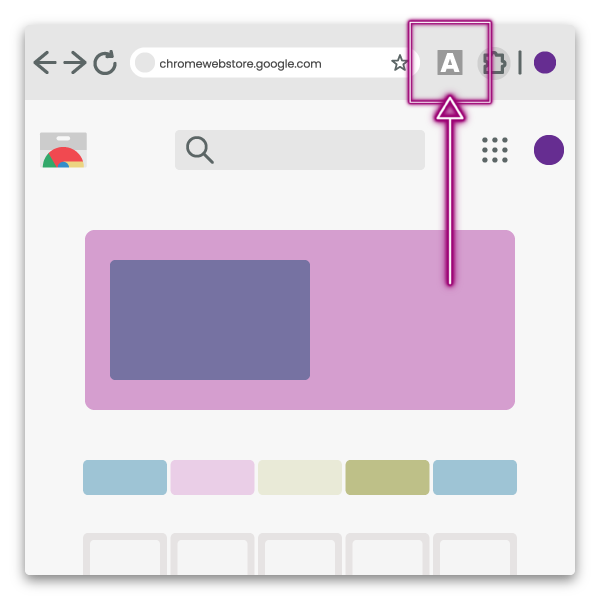
- 3. Once you have completed these steps, you can always find the app icon next to the "Extension" icon on the right side of the address bar.
Tab Helper Information
App icon changes colour depending on the type of tab
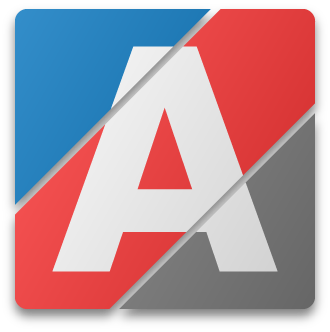
When the extension is pinned in Chrome, you will see the app icon in the Extensions bar to the right of the address bar (top right of Chrome). The icon will change colour depending on the type of tab you are on.
- Blue - This is an Atlassian Jira or Confluence tab.
- Red - This is an Atlassian Jira or Confluence tab that you have designated as a "Production" tab.
- Grey - This is for all other non-Atlassian Jira or Confluence tabs.
Use your cursor or keyboard shortcuts for navigation
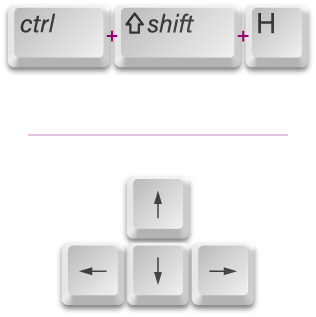
The app can be opened by clicking the icon in the Extensions bar. You can also use keyboard shortcuts to open the app and navigate through sites/tabs.
- Use Ctrl + Shift + H to open the app.
- Use the Left and Right arrow keys to move through your Atlassian sites.
- Use the Up and Down arrow keys to move through the tabs.
Change the tab icons to match your tasks
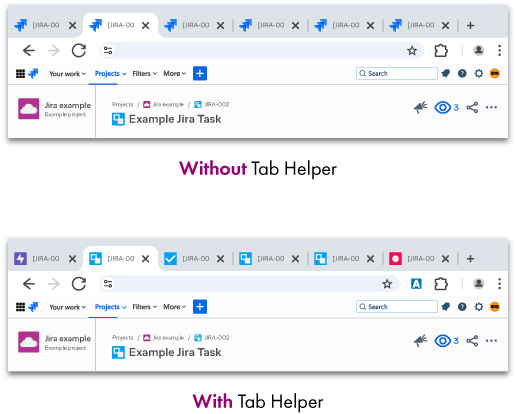
Each tab has an icon (known as a Favicon) on the left side. Normally with Jira tabs, the icon is the Jira logo.
With Tab Helper, the icon is changed to match the task type open on the page - epic, task, sub-task, bug etc. This makes visually searching your tabs quicker and more efficient.
Interact with tabs directly in the app
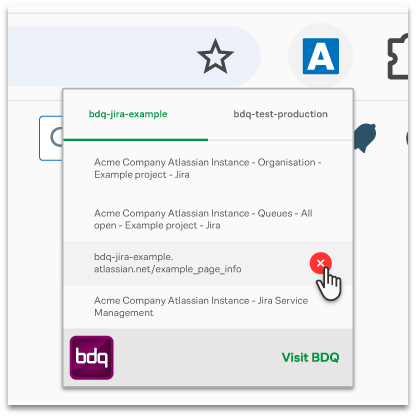
With the app window open you can jump to a tab or close tabs without having to go to the tab in question.
- Click on a tab in the list to jump directly to it.
- Hover your cursor over a tab in the list to see a Close icon. Click the icon to close the tab.
Add a warning to your Production sites for easy reference
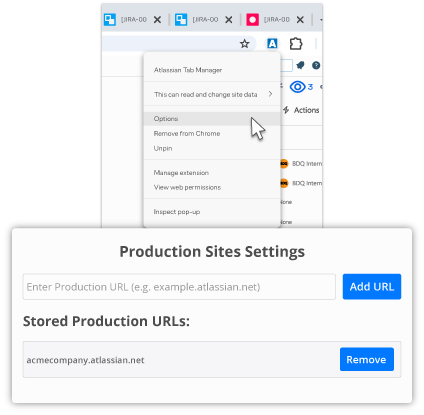
To avoid accidentally closing tabs associated with Production sites that you are working on, you can add these sites to a safe list which will turn the app icon red.
- To add sites to your safe list simply right-click the app icon, select "options" and add the production site URL in the dialogue box. You can manage your production URLs in this dialogue too.
Why BDQ
BDQ are Atlassian Solution partners based in the UK & US with more than a decade of experience in implementing, training, consolidating or migrating Atlassian products such as Jira, Confluence, Jira Service Management, Jira Work Management and many more. We have produced several apps available in the Atlassian Marketplace. For more information on the apps we offer, please see our BDQ Products page.
- Drowning in a sea of Jira/Confluence Tabs?
- Spending too much time finding the tab you need?
- Worried you might accidentally close a production tab?
Tab Helper for Jira & Confluence ...is here to save the day!
App Support
Tab Helper for Jira & Confluence is provided free of charge and is unsupported by BDQ.
We have posted the source code for the add-in on GitHub.
App Resources
Here you can find all kinds of resources that you can refer to regarding the Tab Helper for Jira & Confluence app from BDQ.
If you have any specific questions and cannot find the answer in the sections or links below, please get in touch. Let's talk about what you need.
Documentation
To make Tab Helper as easy to use as possible, we have prepared several "How to" guides that cover all aspects of using the app. We have included screenshots for you to look over.
You can click on the links on this page or go to the BDQ Documentation page for Tab Helper.
If you would like to download a PDF version of the information on this page, or you have any questions or comments regarding the app, please complete the form. For consultancy, training or implementation of Confluence, Jira or other Atlassian products, please contact us here. Let's talk about what you need.
If you are using the app and require support, please do not use the contact form, instead raise a ticket through our support desk.
We want to keep you informed about product updates, future product releases and any security issues that may arise. To be among the first to be notified, please fill out the form.
Need a hand? Raise a ticket via the BDQ Support Portal, explore Managed Support for flexible expert help, or read more customer stories.