

PDF Automation for Jira and JSM · Docs
How to Use Incoming webhook with PDF Tool
The PDF Tool app allows you to trigger actions externally using webhooks. This is particularly useful for integrating with external systems or automating w...
Last updated 30 October 2025
The PDF Tool app allows you to trigger actions externally using webhooks. This is particularly useful for integrating with external systems or automating workflows via API calls.
Follow these steps to configure and use the webhook functionality:
Step 1: Get the Web Trigger URL and Secret Key
Go to your Jira project.
In the left-hand sidebar, click on Project settings.
Under Apps, select PDF Export.
In the Space settings:
Copy the Incoming webhook URL — this is the endpoint you’ll use in your webhook call.
Copy the Secret Key — this is required for authenticating the request.
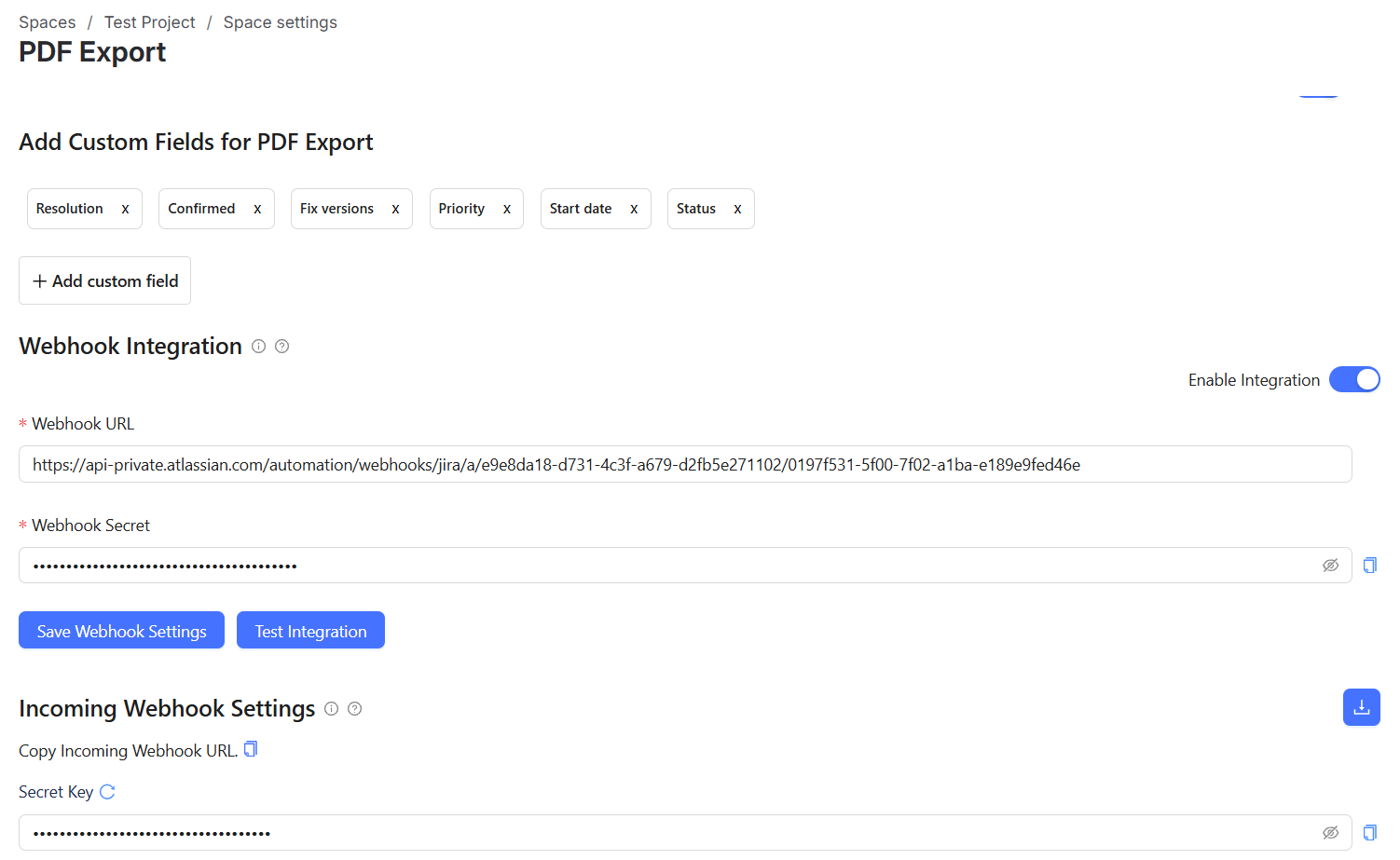
Step 2: Create a Web Request to Trigger the Webhook
Use any tool or system that can make HTTP POST requests (like Postman, a backend service, or CI/CD pipeline). Here’s how to structure the request:
Request Method:
POSTRequest URL: Paste the copied Automation URL (Web Trigger URL)
Headers:
secret-key: Paste the copied Secret Key
Request Body:
Use a JSON payload containing theissueKeyfor which you want to trigger the webhook.
Example:{ "issue": { "key": "TP-6" } }
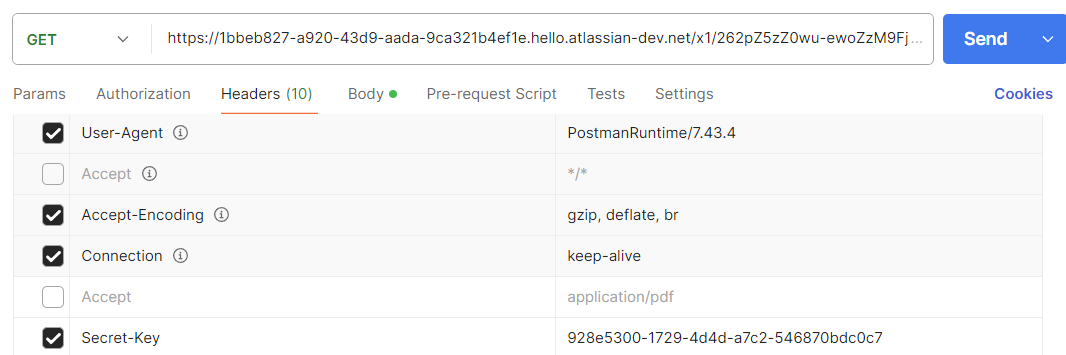
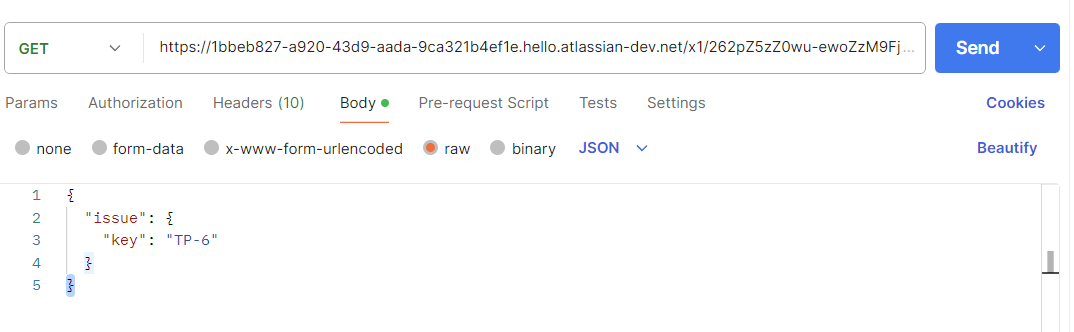
Step 3: Call the Web Request
Send the request. If the secret-key matches and the payload is valid:
The webhook will execute successfully.
It will automatically exports pdf associated with the specified
issueKey.A new comment will be added to that Jira issue containing the exported pdf.