
PDF Automation for Jira and JSM · Docs
How to use automation action with PDF Tool.
The PDF Tool integrates seamlessly with Jira Automation through a custom automation action that allows you to attach a generated PDF directly to a work ite...
Last updated 29 December 2025
The PDF Tool integrates seamlessly with Jira Automation through a custom automation action that allows you to attach a generated PDF directly to a work item.
You can configure a Jira Automation rule using this custom action (Attach PDF) to automatically generate and attach a PDF, along with an optional comment, whenever the rule is triggered.
Below is a step-by-step guide demonstrating how to set up an automation rule that attaches a PDF to a Jira work item and adds a comment.
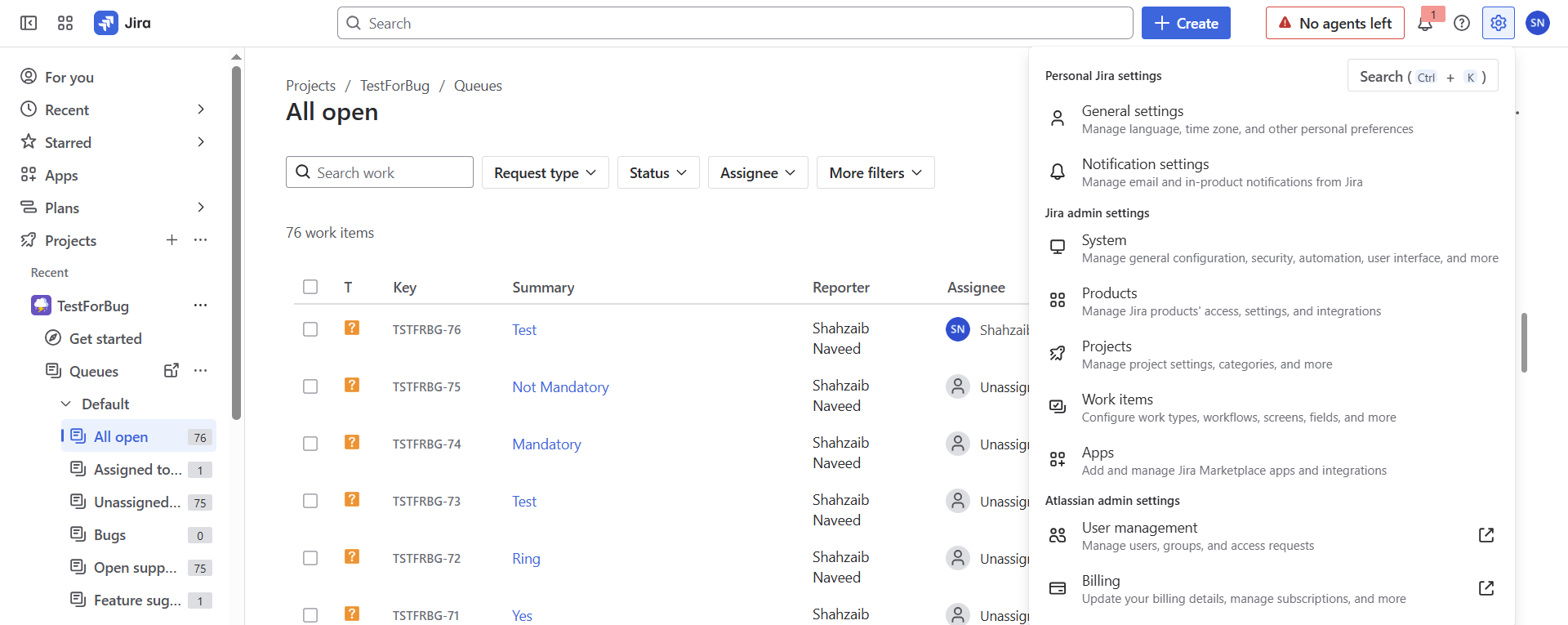
Step 1: Access Global Automations
In Jira, click the Settings (configuration icon) on the top-right, next to your user avatar.
From the dropdown, select System.
In the left-hand sidebar, scroll down and click on Global automation under Automation.
Step 2: Create a New Automation Rule
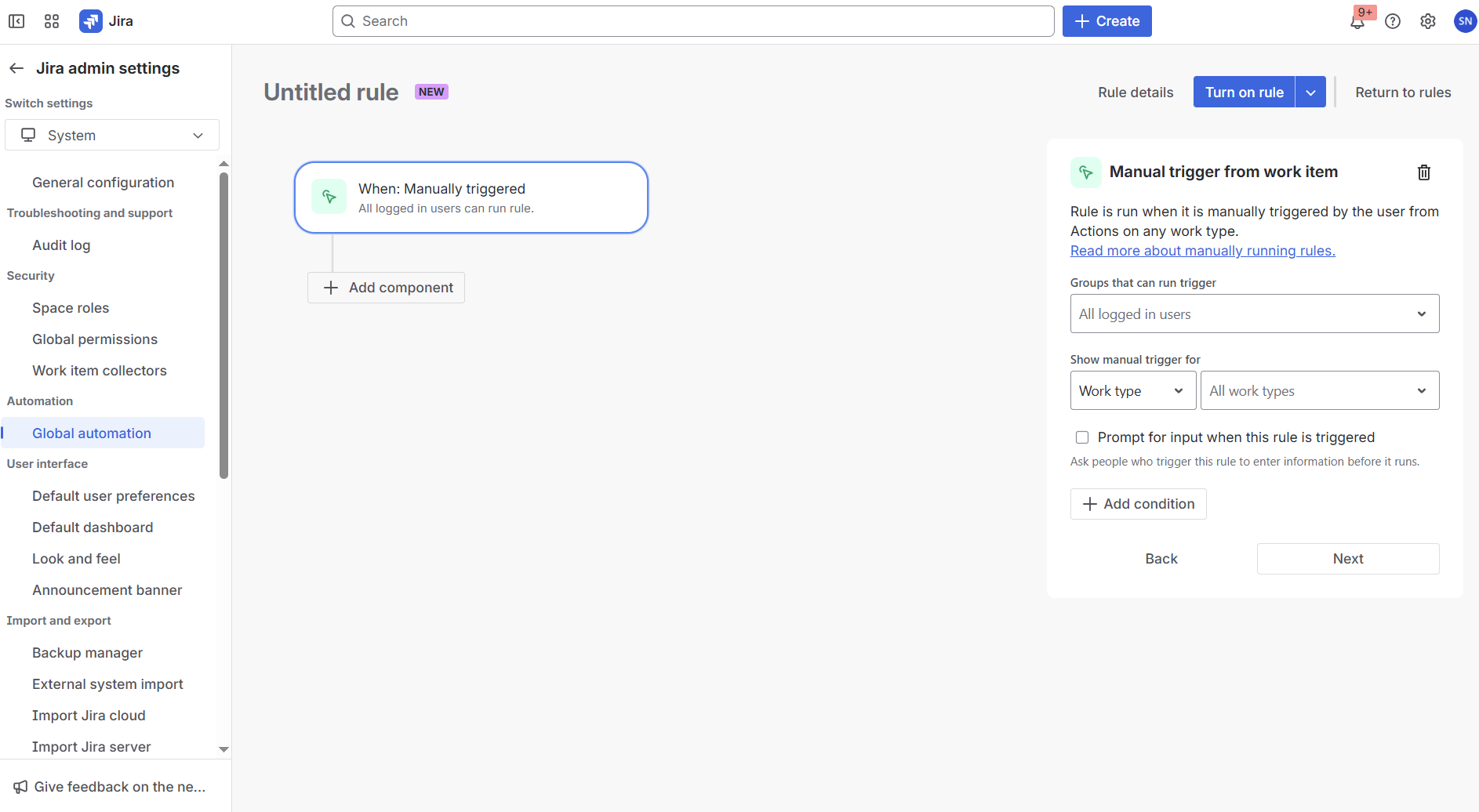
Click Create rule.
Under Add a trigger, select Manual Trigger from work item.
Step 3: Add an Action to Your Automation
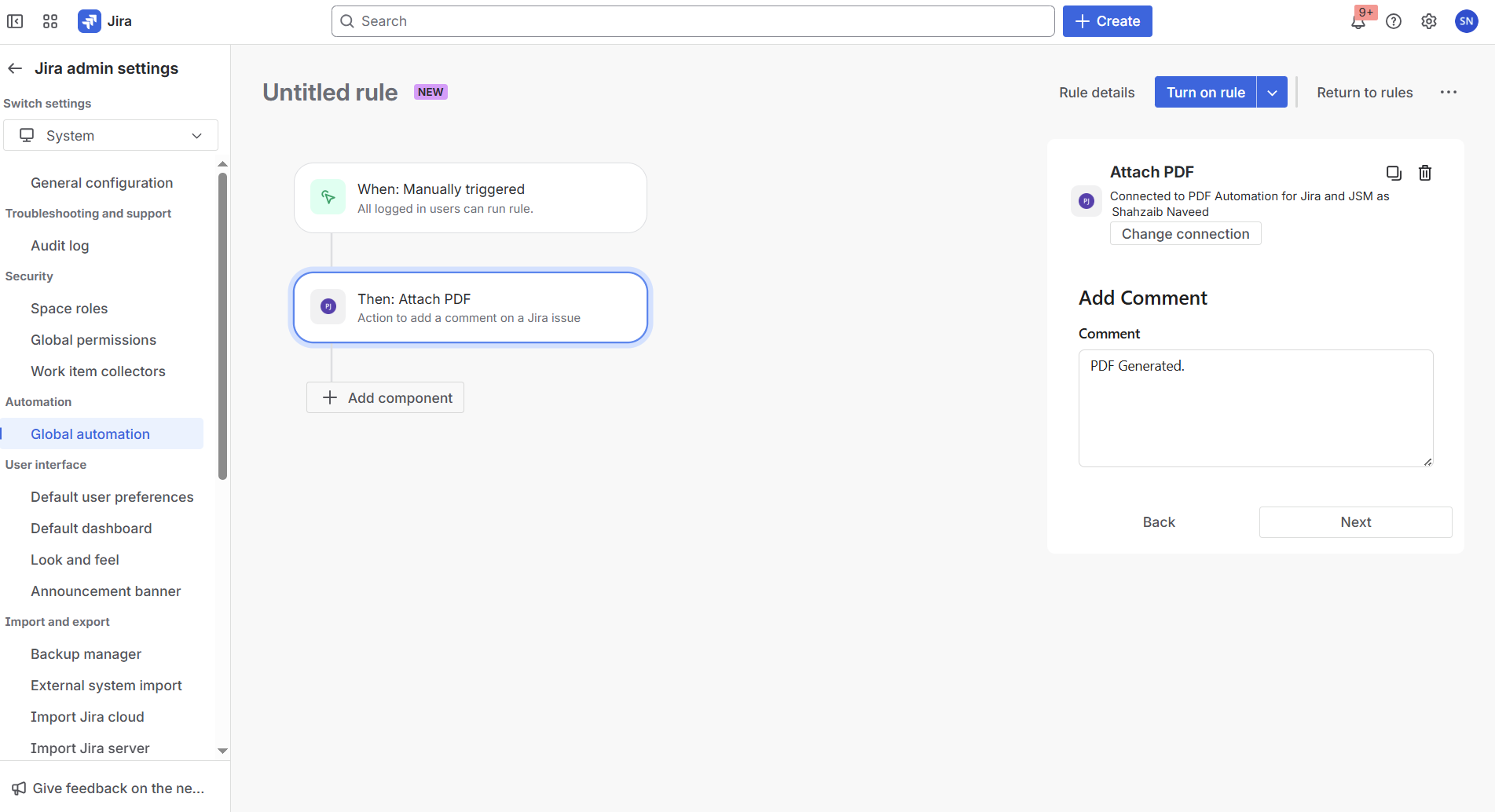
After adding the Manual Trigger from work item, click New action.
Select Attach PDF from the list of actions.
In the comment field, enter a message like:
Pdf Generated.Click Next.
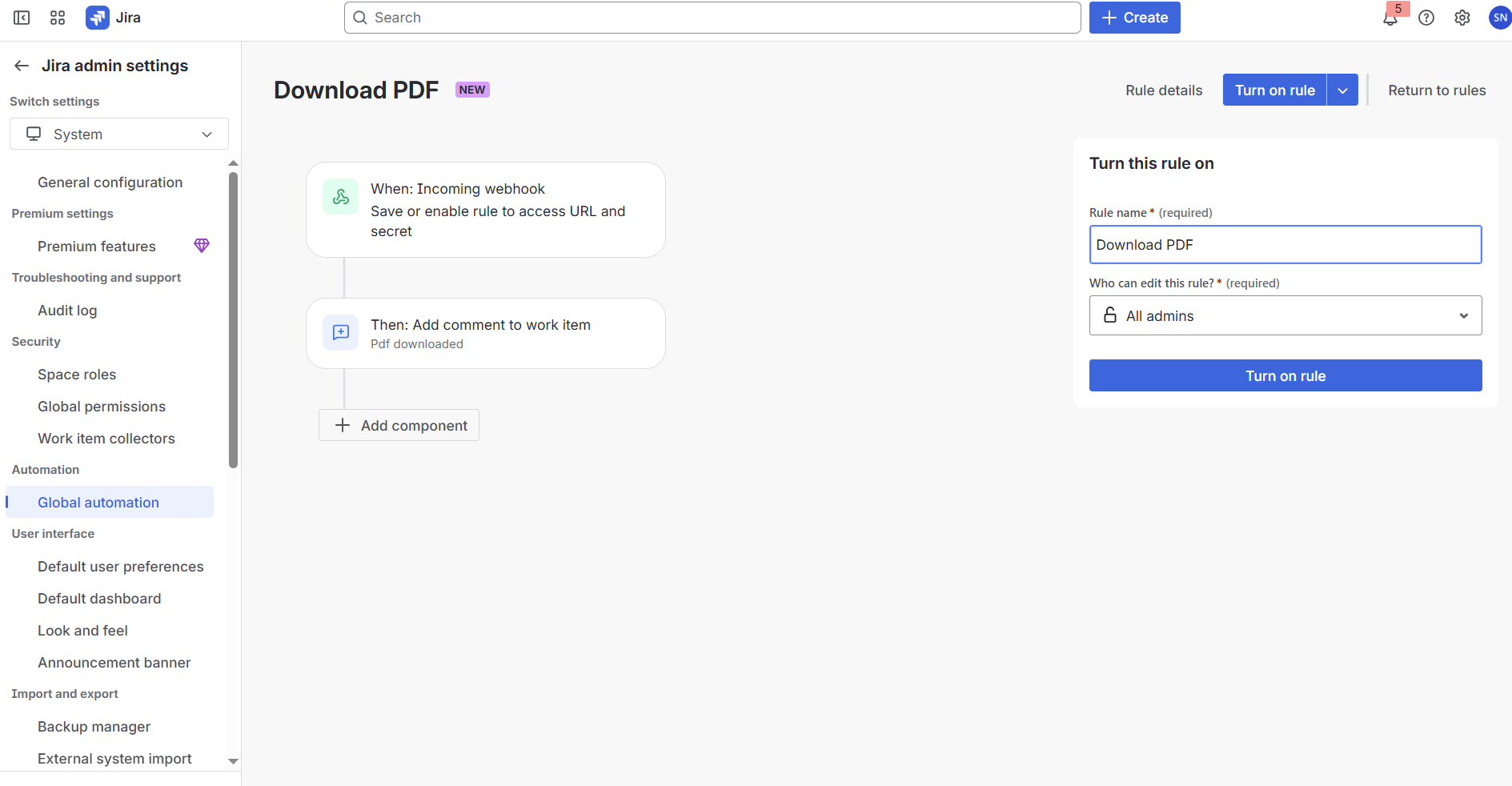
Step 4: Name and Turn On the Rule
Give your rule a clear name like
PDF Attachment.Turn the rule on.
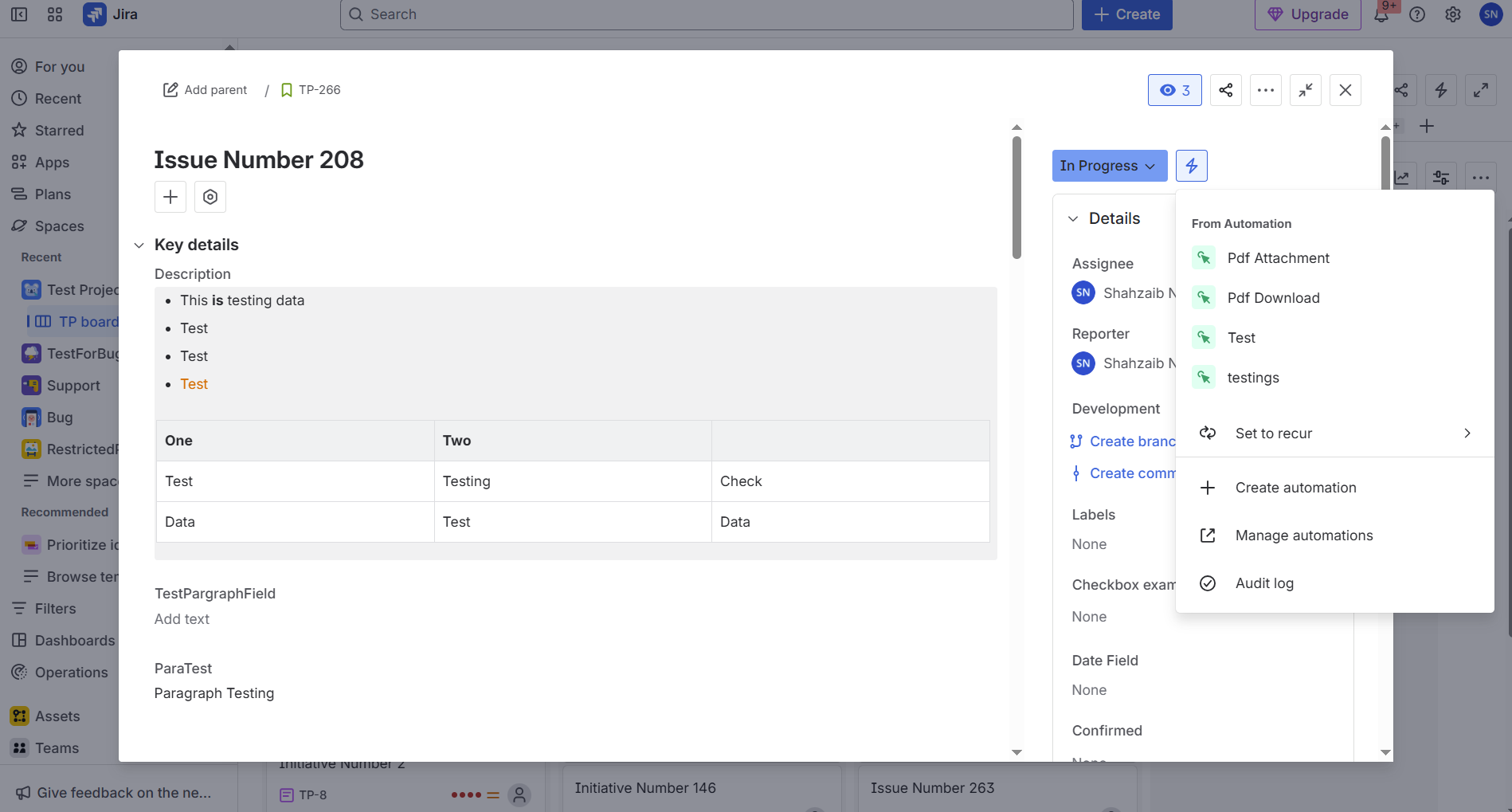
Step 5: Trigger the automation from any work item
Go to your selected work item
In the right-hand sidebar, Automation (⚡︎) icon.
Select PDF Attachment to trigger the automation.
This will attach the generated PDF in the comment section of a work item.