

Field Service Management for Jira and JSM · Docs
My Trips (Agenda, Routes, Weekly)
IntroductionThe Field Service Management (FSM) app offers a comprehensive view of visits, accessible through Project Page: Table View, Schedule View, Route...
Introduction
The Field Service Management (FSM) app offers a comprehensive view of visits, accessible through Project Page: Table View, Schedule View, Routes View, and Map View. Each panel provides unique tools and visualizations to manage visits efficiently.
Views Overview
1. Agenda View
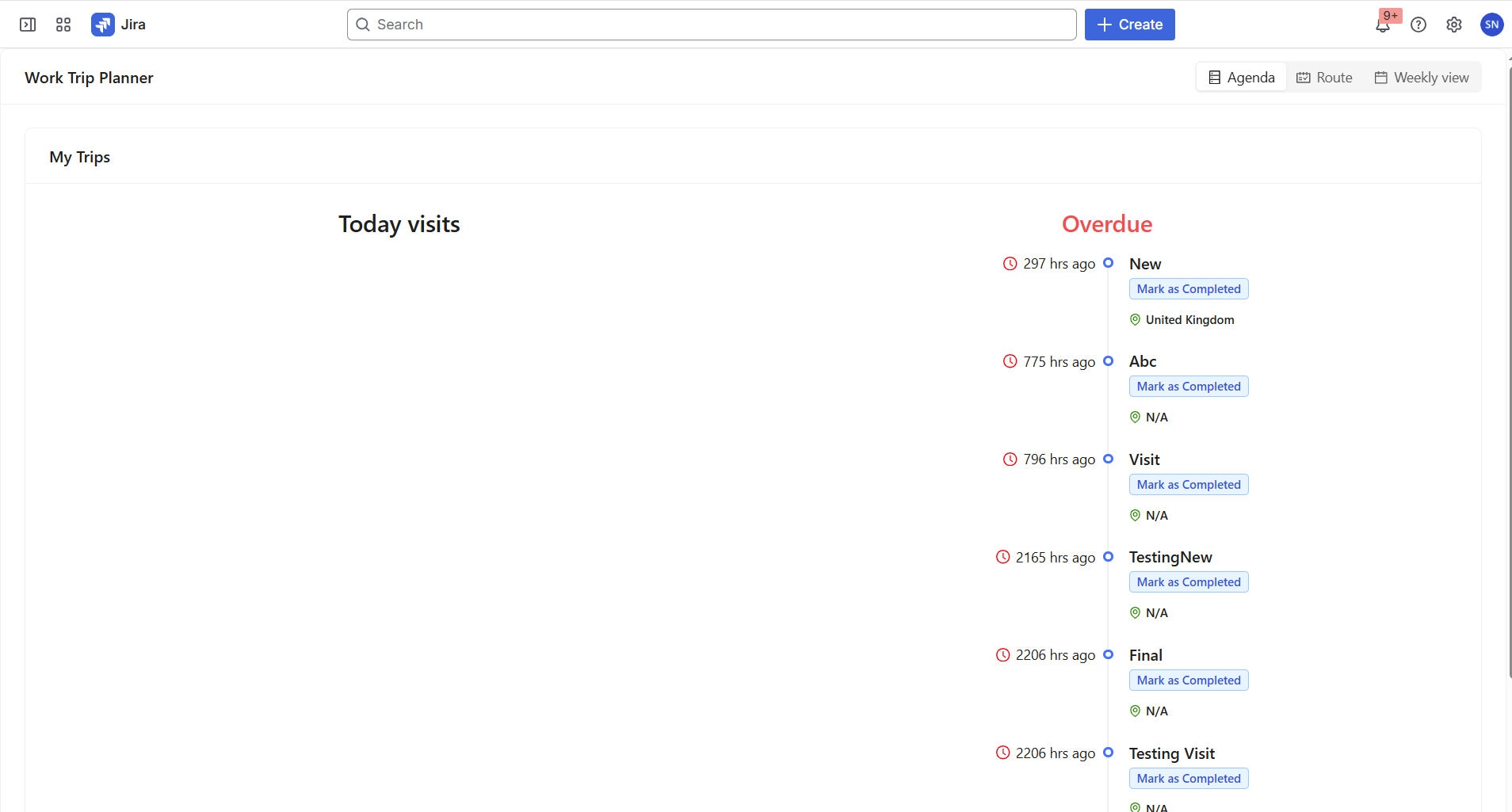
The Agenda View provides a quick overview of today’s visits and overdue visits, helping users stay on top of scheduled and missed visits.
Visit Categories
Today’s Visits:
Displays all visits scheduled for the current day.
These visits help users understand what needs to be completed today.
Overdue Visits:
Displays visits that were scheduled in the past but have not yet been completed.
Each overdue visit clearly indicates how late it is.
Visit Details Displayed
For each visit, the following information is shown:
Location:
Displays the visit location to help users quickly identify where the visit is scheduled.Visit Details:
Includes key information such as visit title, assigned user, and visit timing.Overdue Duration:
For overdue visits, the system shows how many hours the visit is overdue (for example, “3 hours overdue”).
This helps prioritize visits that are most delayed.
Completing a Visit
Mark as Completed Option:
Each visit includes an option to mark it as completed.
Clicking this option updates the visit status immediately.
Once completed, the visit is removed from the overdue or today’s list as appropriate.
This helps keep the agenda accurate and up to date.
2. Routes View
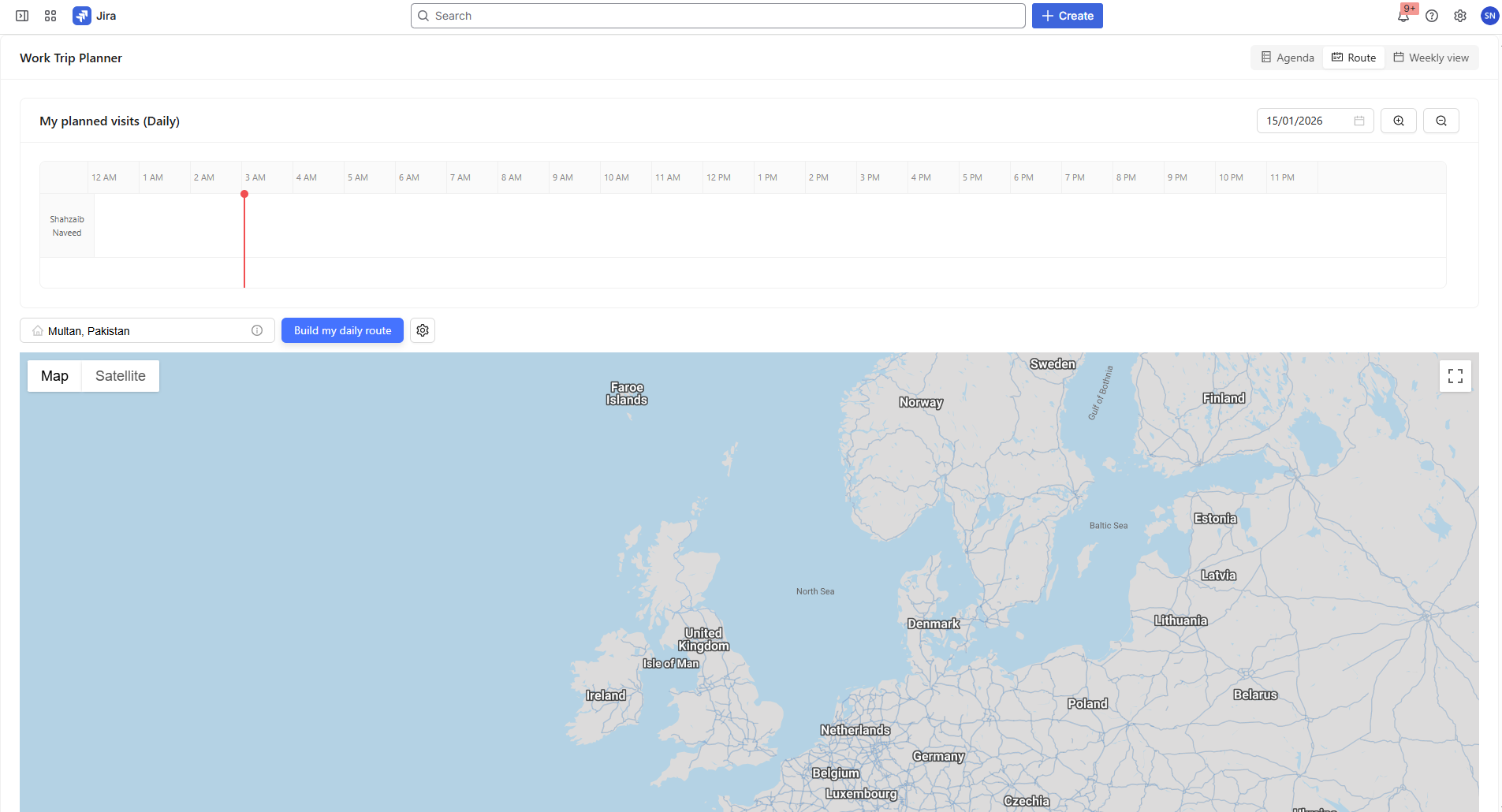
The Route View allows users to plan and visualize their own personal visit routes.
It is designed for individual use and does not include any team-based controls.
Starting Location
Routes in this view are generated for the current user only.
The starting location is either the user’s default location or the entered value.
User Default Location Settings
A Settings (⚙️) icon is available to manage the user’s default location.
Clicking the settings icon allows the user to set or update their default location.
The selected location is saved as the user’s default starting point.
This location is automatically used for all route calculations.
Filters
Date Filter:
Select a date to view and build routes only for visits scheduled on that day.
Only visits matching the selected date are included in both the map and schedule.
Building Routes
Build Route Button:
Clicking this button generates the route for the selected date.
Routes are created using:
The user’s default location
Visits scheduled on the selected date
All visit locations are included in a single personal route.
Schedule View (Read-only)
Below the map, a timeline view displays visits for the selected date in chronological order.
Visits are shown as time blocks (for example, 12:00 – 2:00).
Each timeline entry represents a scheduled visit.
The timeline is read-only on this page.
No edits can be made to visit times or details from the Route View.
This timeline helps users quickly understand their daily schedule and visit sequence.
Route Results
After building the route:
The route is displayed visually on the map.
The estimated total travel time for the day is shown.
Users can review both the route and the timeline together for better planning.
3. Weekly View
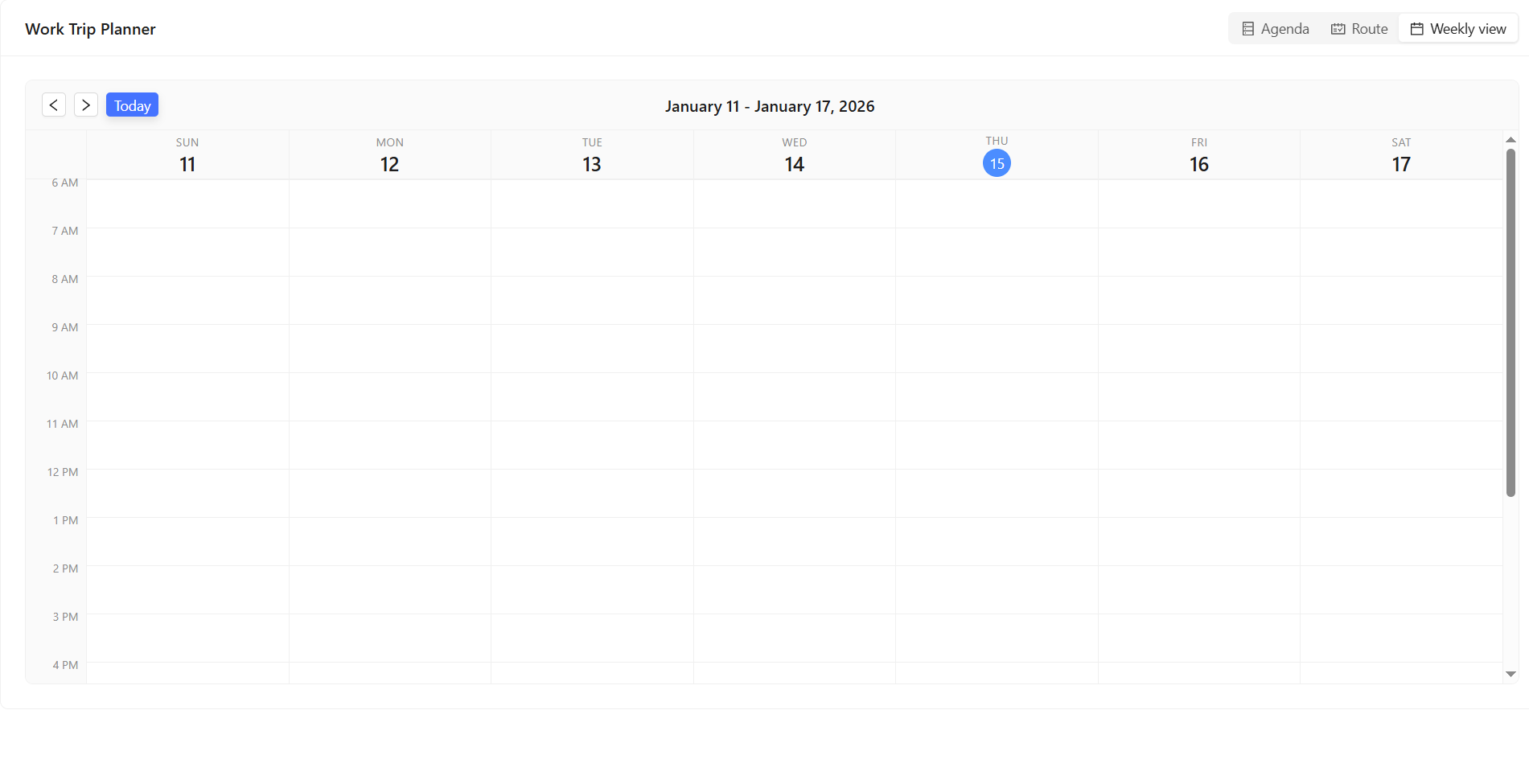
The Calendar View is a read-only representation of the scheduled visits for the week.
Features:
Displays visits over a full week.
Use arrows at the top left to navigate between weeks.
Hover over scheduled visits to see a tooltip with details like:
Type of visit
Time
Title
How to Navigate Between Views
Use the panel navigation buttons at the top of the Project Page to switch between views.
Ensure to save changes in the Schedule View before switching to other panels.
Summary
Efficiently view visits through the Agenda View.
Visualize visit locations and routes with the Routes View.
Get a weekly overview of scheduled visits in the Weekly View.