

You may need to log in to your Asana account when using Attachment Manager for the first time. The button for this is located in the top right corner of the Attachment Manager page.
How do I add the Attachment Manager widget to tasks?
1. Open up the task view while within a project that has Attachment Manager added to it
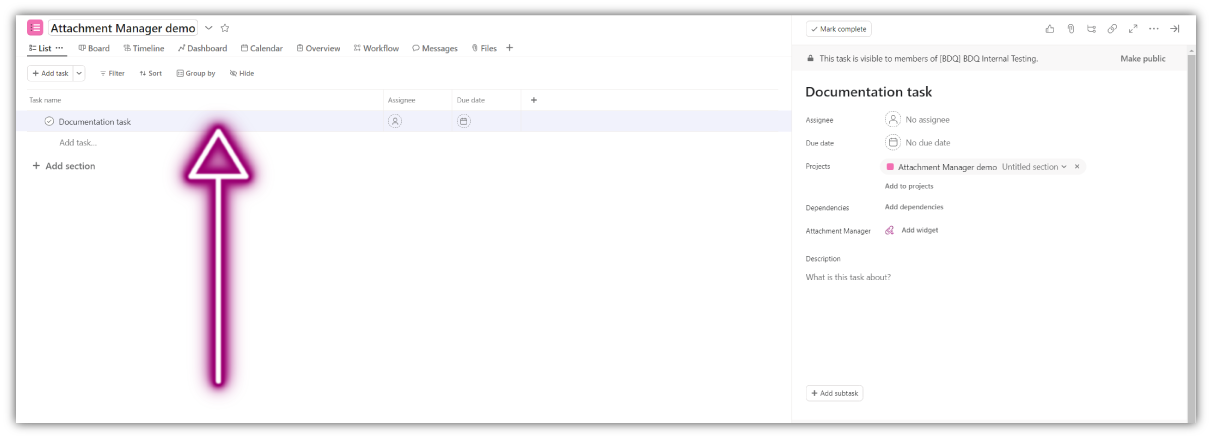
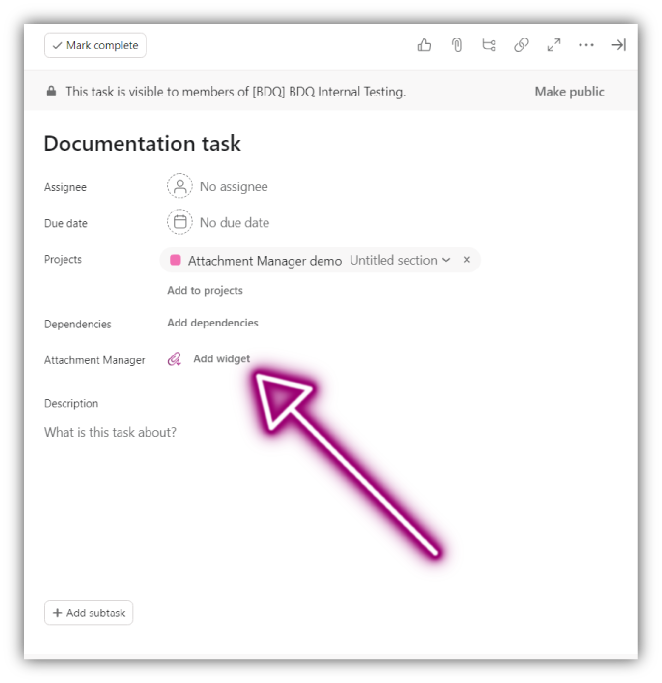
2. Within the task view click add widget found next to the Attachment Manager field
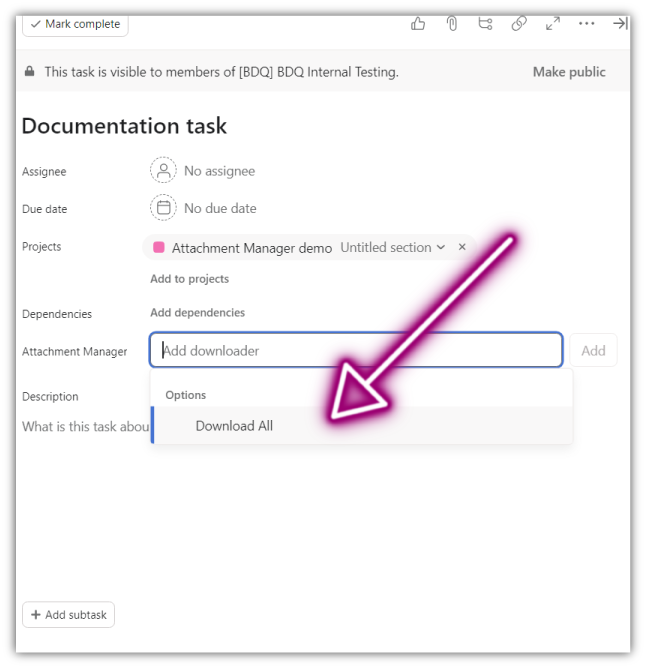
3. Select Download All and click Add
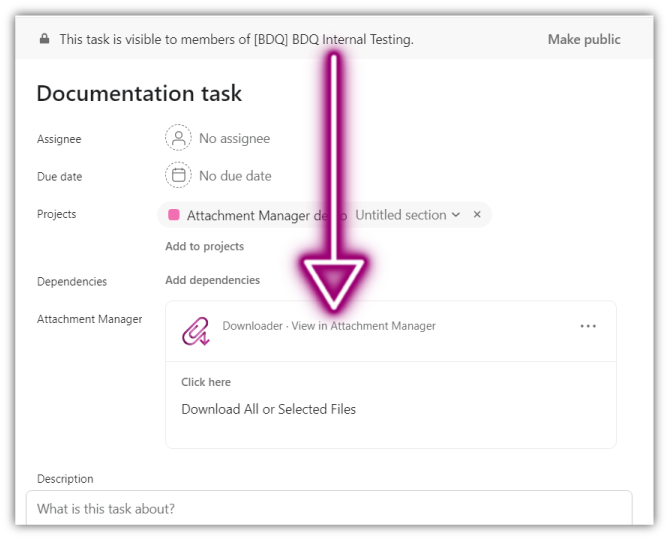
4. If you have added the widget correctly, it should look like this
Up Next:
Adding tags and statuses to your attachments →
What is Attachment Manager for Asana?
Attachment Manager for Asana is an app that enables users to bulk download multiple attachments from Asana projects. Quickly organise, filter and sort attachments and securely download the files you need. Enhance productivity by eliminating the need to download each attachment individually.
The Attachment Manager app was developed in-house and is supported by BDQ and is available through Asana.